
Key takeaways
- A Facebook Business Page is a free public profile that lets businesses post content, run ads, and talk to customers separately from a personal account.
- Creating a Facebook Business Page takes about 10 minutes, and you need a personal Facebook account to start.
- Optimizing your page with complete business details, strong visuals, and community-focused content helps it surface in Facebook search and builds credibility.
- Hootsuite Social OS lets you schedule posts, manage messages, and track performance for your Facebook Business Page alongside every other social channel.
What is a Facebook Business Page?
A Facebook Business Page is a free, public profile on Facebook built for businesses, brands, organizations, and public figures. It looks similar to a personal profile, but it comes with business tools: analytics, advertising access, team permissions, and customer messaging.
Unlike a personal profile, anyone among Facebook’s 3.07 billion monthly active users can follow your page without a friend request, which makes it a discovery channel rather than a private network. Here is what a Facebook Business Page gives you:
- Public visibility: Your page can be found in Facebook search and indexed by search engines.
- Content publishing: Post text, photos, links, Reels, Stories, polls, and live video.
- Advertising access: Run Facebook and Instagram ads through Meta Ads Manager, where ad impressions grew 12% in 2025.
- Performance analytics: See reach, engagement, follower growth, and individual post results.
- Team access: Assign admin and task-level permissions so colleagues can help without sharing a login.
- Customer communication: Receive messages through Messenger and WhatsApp, plus comments and reviews.
In short, a Facebook Business Page is free credibility and distribution, with the ad and reporting tools you need to turn attention into results.
Facebook Business Page vs. personal profile
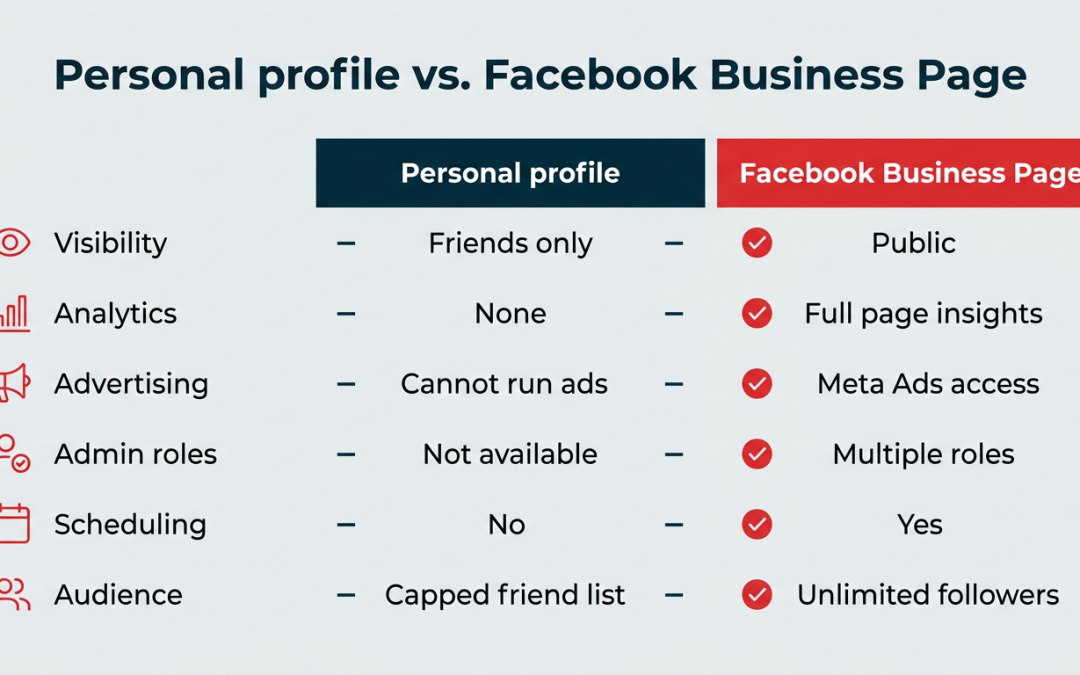
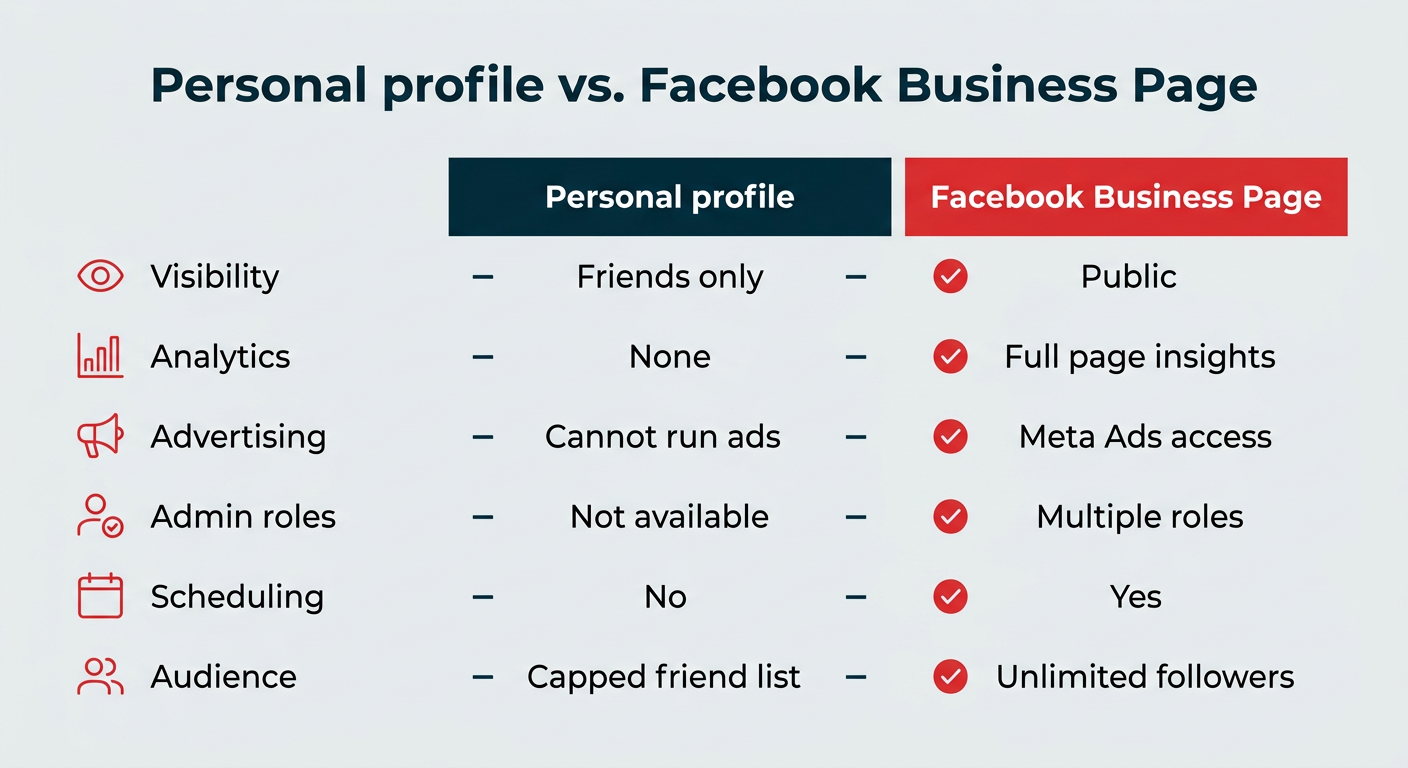
You need a personal Facebook profile to create a Facebook Business Page, but the two accounts stay separate. Your name, friends, and personal posts are not shown on the page, and you should not create a second personal account just to run a business page. Facebook’s terms require a real, personal account behind every page.
Here is how the two compare:
|
Feature |
Personal profile |
Facebook Business Page |
|---|---|---|
|
Visibility |
Friends and followers only |
Public |
|
Analytics |
None |
Full page insights |
|
Advertising |
Cannot run ads |
Full access to Meta Ads |
|
Admin roles |
Not available |
Multiple roles and permissions |
|
Content scheduling |
No |
Yes, native and third-party |
|
Customer messaging |
Personal Messenger |
Business Messenger plus integrations |
|
Audience |
Capped friend list |
Unlimited followers |
The short version: use your personal profile to log in, and use your page to do business.
How to create a Facebook Business Page
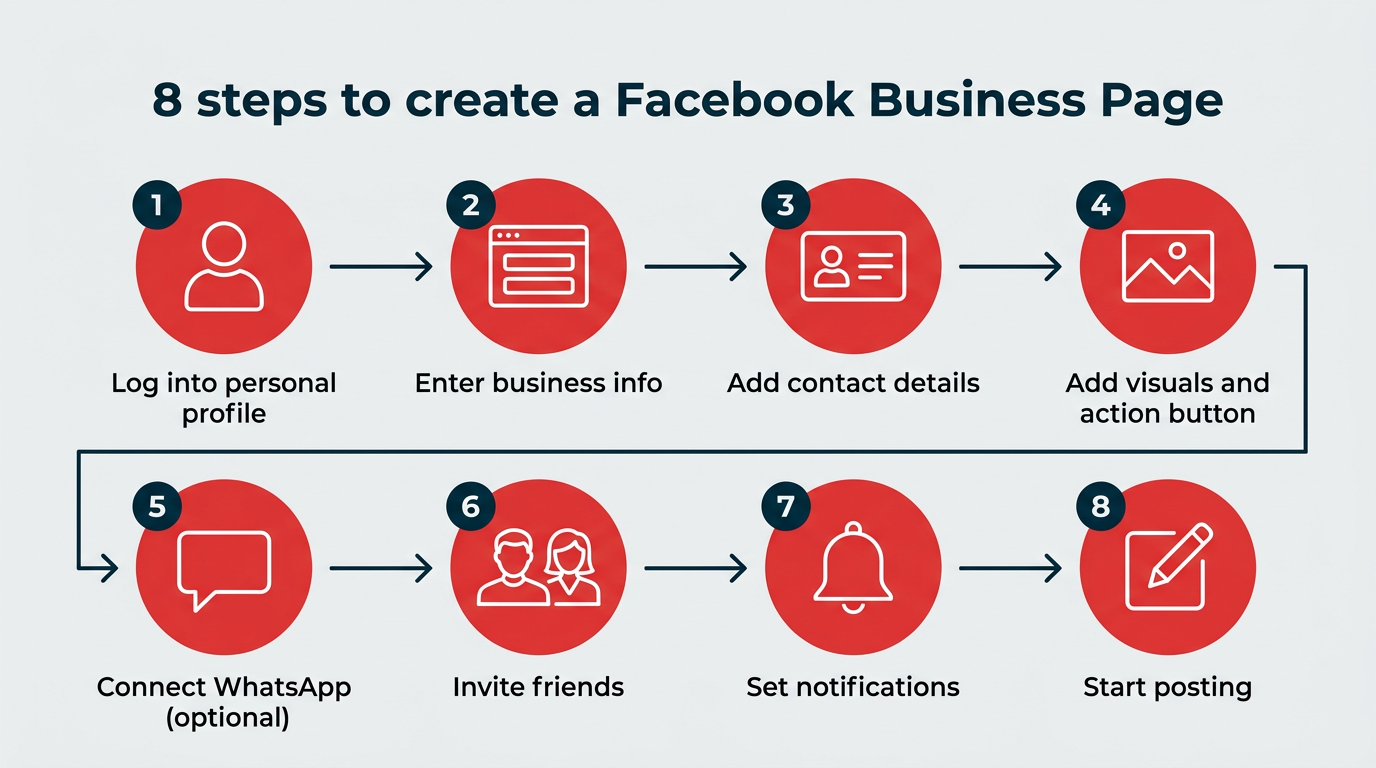
Facebook Business Page setup is free and takes roughly 10 minutes. Here is the process in eight steps, followed by a detailed walkthrough of each one.
- Choose (or create) a personal Facebook profile
- Enter your business info
- Add your contact details
- Add visuals and an action button
- Connect to WhatsApp (optional)
- Invite your friends
- Set your notification preferences
- Start posting
Step 1: Choose (or create) a personal Facebook profile
You need to log into (or create) your personal Facebook profile to create a Facebook Business Page. If you have team members helping you with your page, they’ll also need personal accounts to unlock their specific roles and capabilities.
Don’t worry — the information from your personal account will not be publicly visible on your business page.
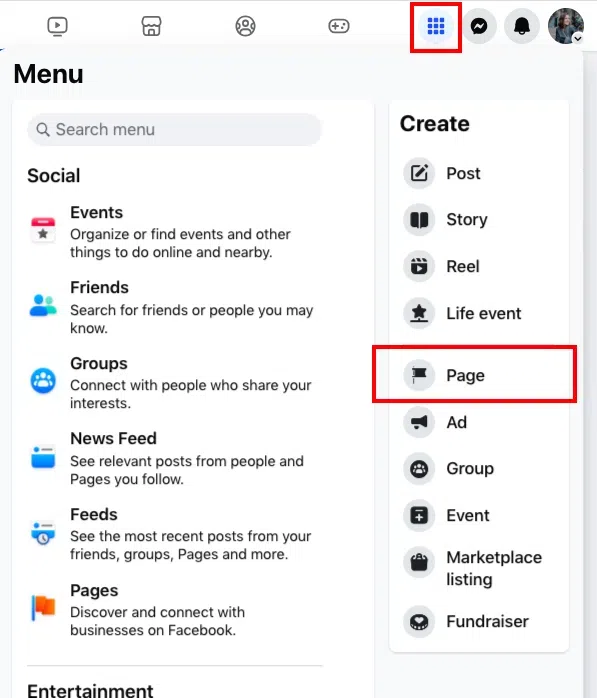
After you log into your personal account, either head to the Create a Page link or navigate to the Pages menu through the top menu button.
Step 2: Enter your business info
Enter your business information in the panel on the left. As you do so, the page preview will update in real time on the right.
For your page name, use your business name or the name people are most likely to search for when trying to find your business.
For category, type a word or two that describes your business and Facebook will suggest some options. You can choose up to three.
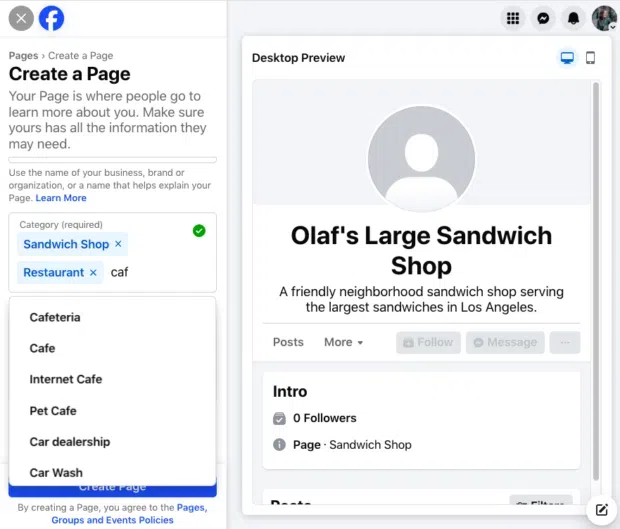
The Bio section is optional, but it’s highly recommended for both credibility and social SEO. You can also update it later if needed.
Press the blue Create Page button when you’re ready to move on to the next step.
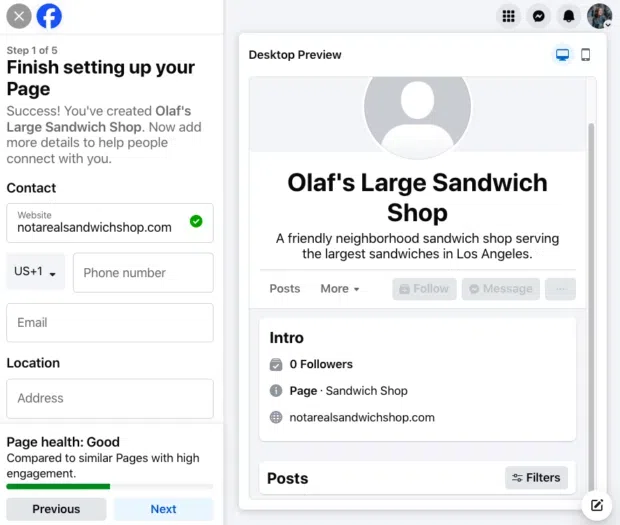
Step 3: Add your contact details
Here’s where you tell people how to reach you more directly.
Since the contact information will be public, you don’t need to provide your email address or phone number if you don’t want to.
You can enter your physical location (if you have one) at this stage, as well as your operating hours (if applicable). Remember, you can add, change, or remove any of this information later. Hit Next when you’re ready to move on.
Step 4: Add visuals and an action button
Next, you’ll upload a cover photo and profile picture for your Facebook Business Page. Choose photos that align with your brand and are easily identifiable with your business.
Your profile photo accompanies your business name in search results and when you interact with users. It also appears on your Facebook page. Your logo is always a good choice, although you may need to modify it to fit a circular format.
As we explain in our cheat sheet on social media image sizes, your profile image should be 320 x 320 pixels (it displays at 196 x 196 pixels on smartphones).
Your cover image should convey your brand personality or highlight a current campaign. Facebook recommends you choose an image that’s 851 x 315 pixels.
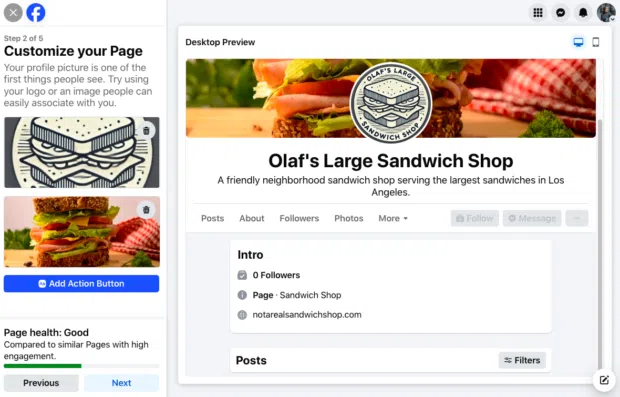
After you upload the photos, you can use the buttons in the top right of the preview to toggle between desktop and mobile view. Use these to make sure you’re happy with how your images look in both displays. You can drag the images in the left column to adjust their positioning.
Don’t forget to complete the Add Action Button section. Facebook’s built-in, customizable call-to-action (CTA) buttons make it very easy to give people what they’re looking for, from booking an appointment to starting an order.
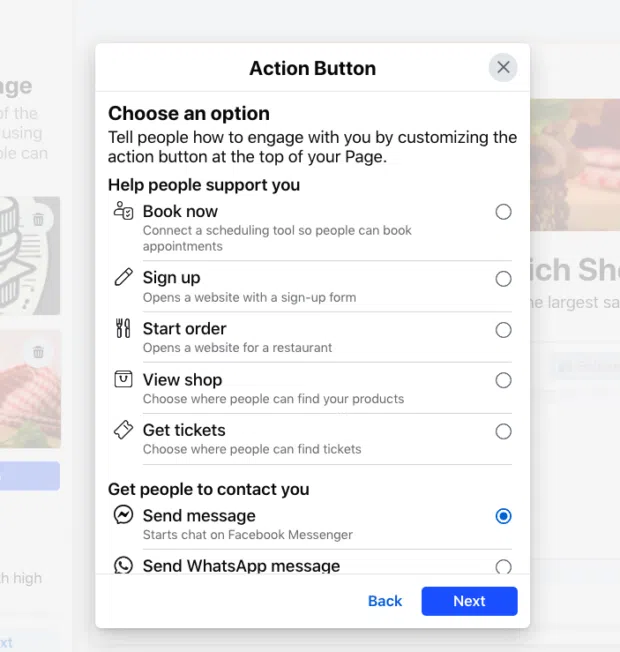
When you’re finished creating your button, click Next.
Step 5: Connect to WhatsApp (optional)
If you’d like to connect with customers using WhatsApp, you can add a WhatsApp button. Just enter your WhatsApp number and get a confirmation code to enter.
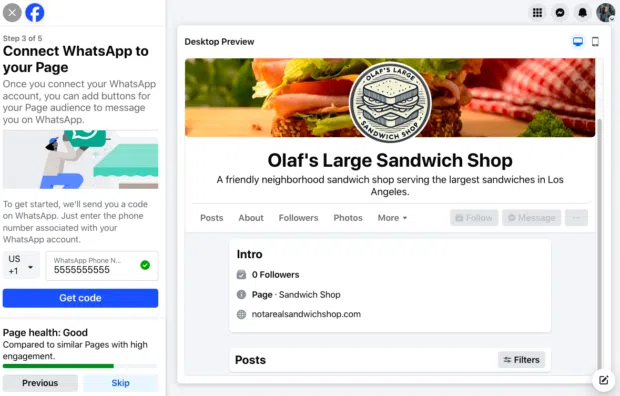
If you don’t want to connect WhatsApp, just hit “Skip.”
Step 6: Invite your friends
To start growing your following, click the Invite Friends button to suggest your Facebook friends connect with your new page.
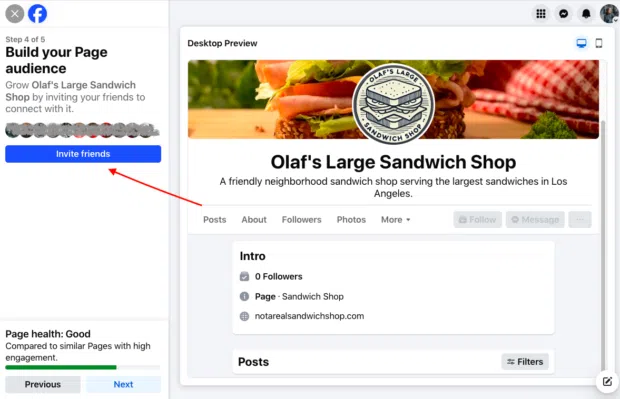
When you’re ready to move on, click Next.
Step 7: Set your notification preferences
When you use Facebook, you may not always be logged in as your page. Turn Page notifications on to receive updates about your Facebook Business Page even when you’re logged into your personal profile.
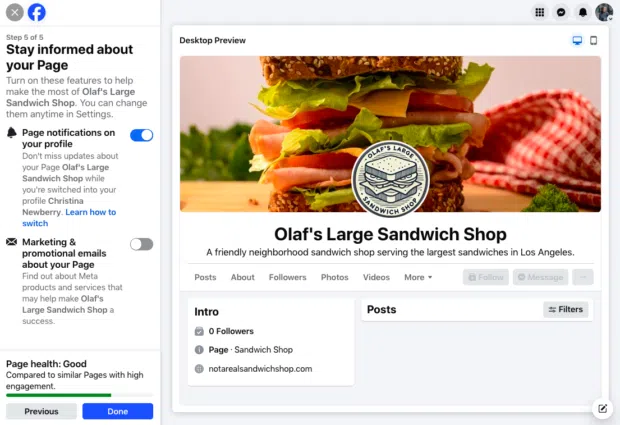
This is also where you can opt in or out of marketing and promotional emails about your page. When you’re ready, hit Done.
Step 8: Start posting
Now that you’ve got a Facebook Business Page, it’s time to post some content.
You can post text, create Stories and Reels, add photos, share links, conduct polls, or go Live if you dare — video is driving all-time high engagement on Facebook in 2026.
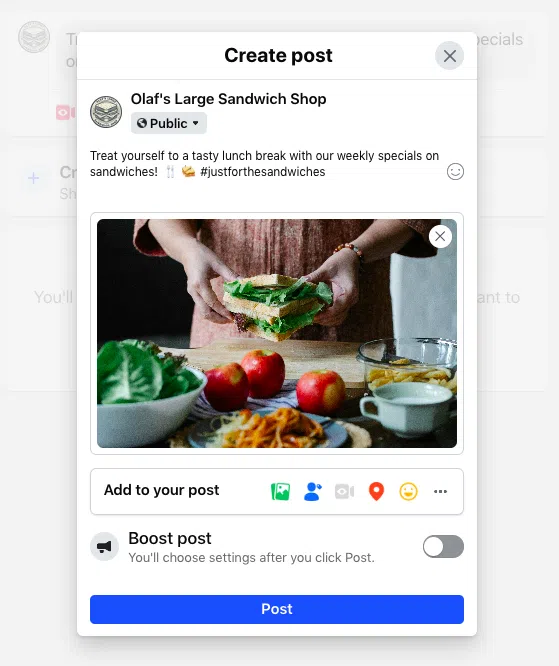
Try out these 18 tips to increase Facebook engagement if you’re not sure where to start. If you’re struggling with copy, use our free AI caption generator, which we used to create the caption in the screenshot above.
How do you add admins to your Facebook Business Page?
You may want team members to create ads, moderate comments, or track insights for you. Here’s how you add admins to your Facebook Business Page.
Click your profile image and from the drop-down list, choose your business page. In the left menu, click the name of your Page, then click Settings. Under Audience and visibility, click Page setup, then select Page access.
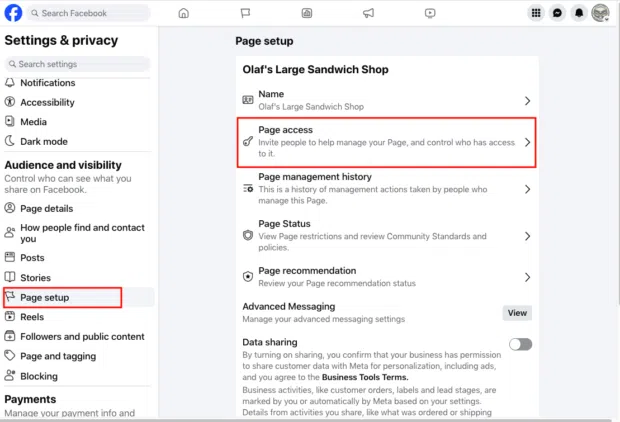
There are a few options for granting permissions:
- Facebook access provides admin-level access.
- Task access provides more specific access for designated tasks.
- Community Managers can only moderate comments and suspend or remove people from the page.
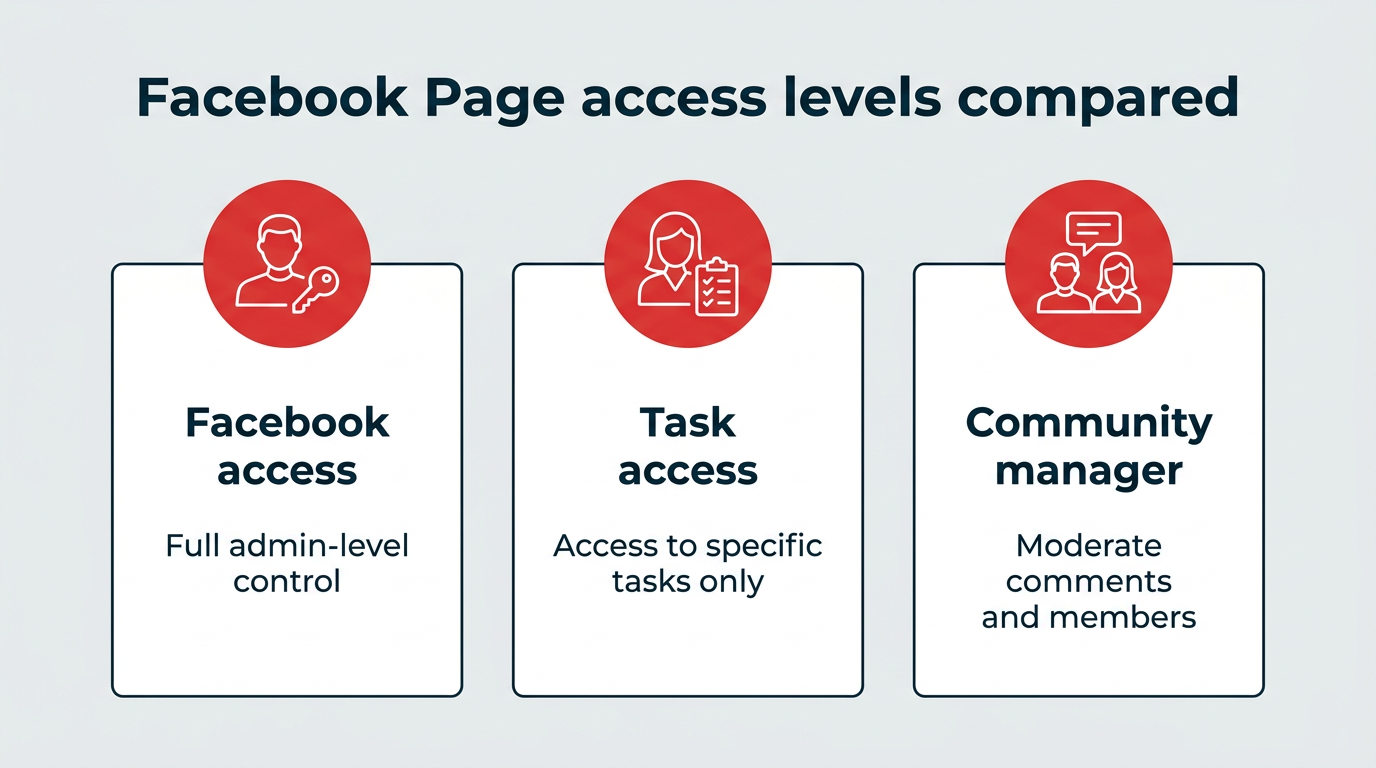
Choose the type of team member you want to add and click the relevant Add New button (or Manage for Community Managers).
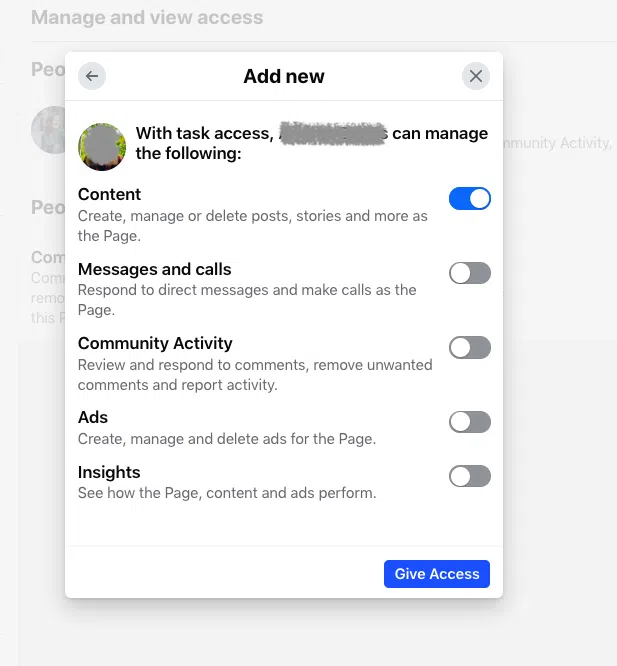
Choose the tasks you’re comfortable with your admin performing, then click Give Access.
How to optimize your Facebook Business Page in 2026
Creating the page is the easy part. Getting it to perform takes a bit more intention, so we connected with dozens of social marketers for their top tips. They suggested approaching your page as a community hub, embracing Facebook Groups, trying hyper-local targeting, and going live.
Build your page as a community hub
Think of your Facebook page as an online presence that connects your brand with current and potential customers.
“Go beyond posts and think about connections,” says Andreea Constantin, Head of Brand Marketing and Communities at LearnWorlds. “Our Facebook Page isn’t just a billboard; it’s a hub that connects our content, community, and customer stories.”
“Make your Page feel like a community hub, not a soapbox,” says Garin Hobbs, Martech Expert at InboxArmy. “As the platform shifts, treat it less like a traffic driver and more as a loyalty tool.”
In practice, that can mean segmenting your content to deepen community engagement rather than broadcasting one message to everyone. “The future of Facebook Pages lies not in broadcasting but in building micro-communities within your broader audience,” says Jock Breitwieser, Digital Marketing Strategist at SocialSellinator.
“We’re seeing remarkable success with clients who create distinct content tracks for different customer segments, essentially running multiple ‘mini-Pages’ within their main Page.”
Use Facebook Groups to deepen engagement
Facebook Groups are an exceptional tool for that community-building. Setting a clear group policy early helps keep conversations productive as your community grows. Think of your Facebook Group and your Facebook Page as tools that support each other.
“Focus on building and engaging with Facebook Groups linked to your Page,” says Karen Etchells, Digital Marketing Strategist at Innovast Digital Marketing. “Groups foster deeper connections and discussions, allowing you to interact with your audience in a more personal, meaningful way.”
“Facebook’s strength lies in fostering Groups, discussions, and connections,” agrees Campara Rozina de Haan, Head of Social Media and Director of Social Strategy at QNY Creative.
“Use your Page to promote and participate in Facebook Groups, hosting conversations tailored to your audience’s needs and interests. This approach not only deepens engagement but also positions your brand as a trusted community leader.”
Try hyper-local targeting (even if you’re a big brand)
More customers are using Facebook to discover local businesses. Even national or global brands can tap into this trend with content that speaks to very specific target audiences.
“Facebook [Business] Pages remain a powerful tool for brands to establish credibility, engage communities, and drive results,” says Laura Mikulski, Senior Growth Strategist at Onspire Health Marketing. “Success lies in leveraging hyper-local targeting, interactive content like polls and video, and integrating features like Groups and Messenger for deeper connections.
“Use Page posts and ads to target specific neighborhoods, cities, or communities,” agrees Milan Bulchandani, Social Media Manager at Olshan Foundation Solutions. “Highlight local testimonials, events, or partnerships that resonate deeply with a smaller audience.”
Engage in real time with Facebook Live
“Going live lets you connect directly with your audience and keep the energy real,” says Chandra Aiken, Founder of Easy Choice Recruiting. “Facebook is still a powerhouse — you’ve just got to show up authentically and give them something they can’t scroll past.”
While these tips mostly focus on community-building, Facebook’s live tools can also drive sales.
“Story-driven Live Shopping has become our secret weapon,” says Joey Lowery, Founder and Marketing Coach at Media Shark. “We’ll have client experts demonstrate products while answering real-time questions, and we’ve seen conversion rates jump 40% compared to standard posts.” (Figure based on Media Shark’s internal client data, which Hootsuite has not independently verified.)
How to verify your Facebook Business Page
You can verify your Facebook Business Page through Meta Verified for businesses, a paid subscription that adds a blue badge to your page. Verification signals to customers that your page is the real one, which helps when impersonation or lookalike pages are a concern.
To be eligible, your page needs to be in a supported country and business category, meet Meta’s minimum activity requirements, and provide official business documentation such as a registration number, utility bill, or business licence. You apply from your page’s Settings, under Meta Verified, then submit your documents for review.
Alongside the badge, Meta Verified subscriptions include features like enhanced support and impersonation monitoring. Check Meta’s official business help documentation for current eligibility rules and pricing in your region, since both vary by market.
How can you manage your Facebook Business Page?
You can manage your Facebook Business Page with Meta’s native solution, Meta Business Suite, or a tool with more advanced features, like Hootsuite.
Meta Business Suite is a collection of business tools to run ads, use Facebook Commerce features, and connect your Facebook and Instagram business accounts. It also lets you plan, create, analyze, and post content across both platforms.
Hootsuite offers more advanced social media marketing features than Meta Business Suite. With Perch by Hootsuite, you can plan, schedule, publish, and measure Facebook content alongside your other social channels.
Perch also helps you find your best times to post, build reports, and manage paid and organic content from one place.
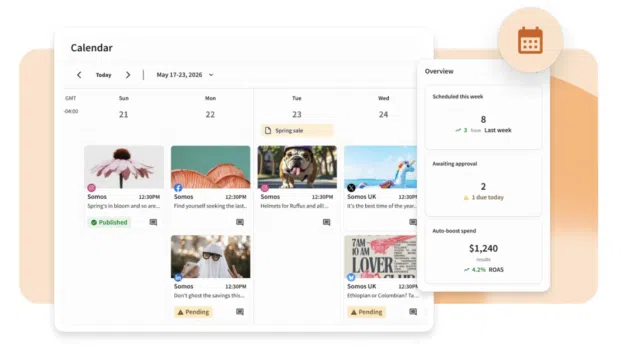
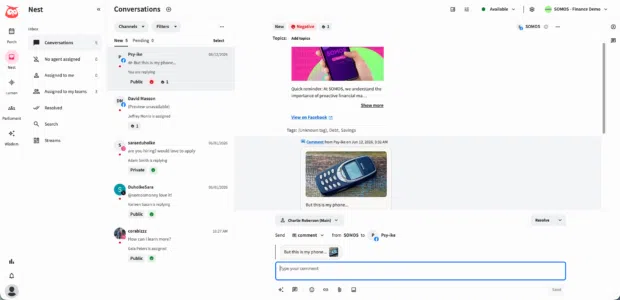
And with Nest by Hootsuite, you can manage comments, DMs, and customer messages alongside conversations across Facebook, Instagram, WhatsApp, LinkedIn, X, and TikTok, so nothing slips through the cracks.
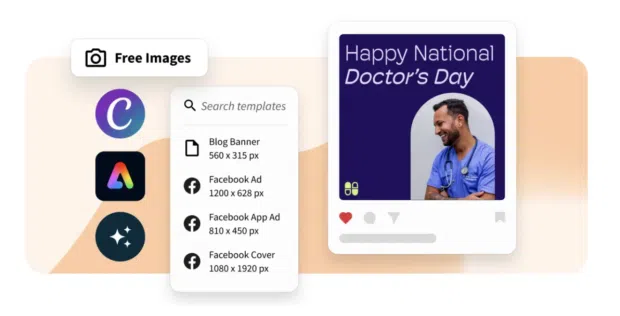
Plan and compose your content
In Perch, you can easily schedule all of your Facebook content (including Facebook Group posts) with a drag-and-drop calendar. Then, create on-brand content in just a few clicks with built-in Canva and Adobe Express templates and free stock images.
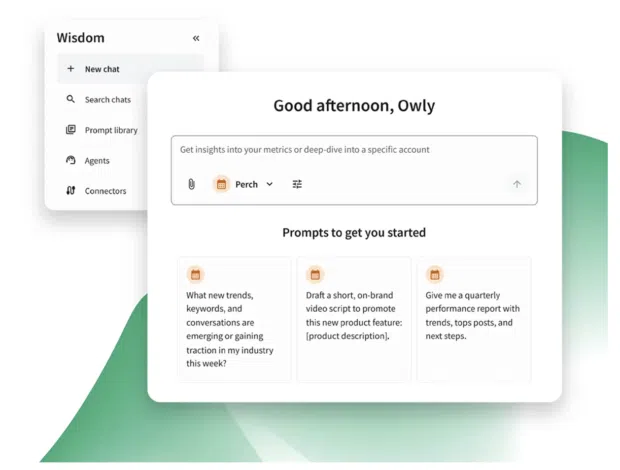
Need content inspo? Wisdom, Hootsuite’s social-first AI, can brainstorm post ideas, offer posting recommendations, or turn a rough idea into a ready-to-review Facebook post. For example, ask it to:
- Write a caption for a new product launch
- Suggest Facebook post ideas for an upcoming campaign
- Add hashtags to improve reach
- Rewrite the caption to match your brand voice
Practice social listening
Social listening — monitoring social channels for mentions of your brand and competitors — is how you gain insights about your customers.
With Quick Search in Perch, you can discover trending hashtags, brand mentions, and events to help guide your Facebook Business Page strategy.
These insights make it easier to spot timely content opportunities, understand what your audience cares about, and create posts that connect with the conversations already happening in your industry.
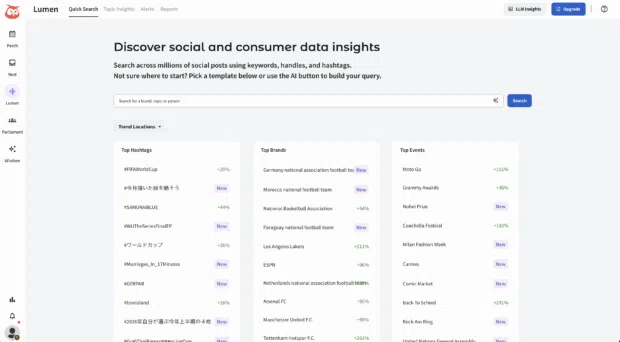
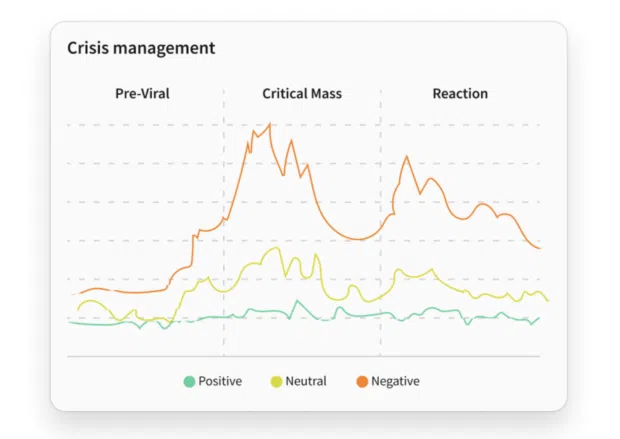
For more advanced listening, Lumen by Talkwalker helps you go deeper. Analyze sentiment over time, track share of voice, monitor competitors, identify emotional drivers, and understand the audiences behind your social mentions.
You can also set up spike alerts to catch emerging risks — like sudden changes in conversation volume or sentiment — before they pick up steam.
Get insights and easy-to-use reports in real time
Perch by Hootsuite lets you track the performance of your Facebook Business Page alongside your other social channels, so you can replicate what works and get more engagement.
It tracks metrics like reach, engagement rate, impressions, shares, and more. You can set up custom dashboards for an overview of your most important metrics at a glance or over a select period of time. You can even see the performance of every individual post.
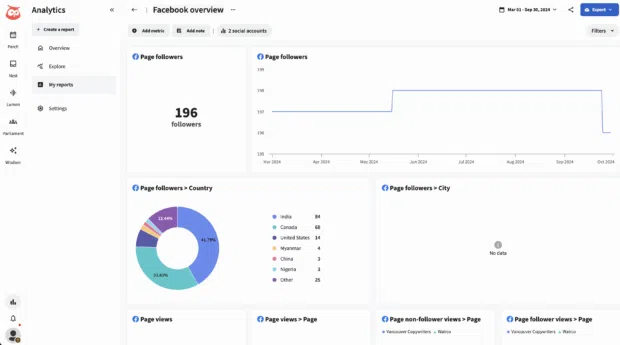
And when you’re ready to demonstrate social media ROI to stakeholders, it’s easy to quickly generate beautifully designed reports.
Find the best time to publish
Perch’s Best Time to Publish feature (found under Analytics) tells you the best times to post on Facebook, as well as Instagram, X, LinkedIn, and TikTok.
The recommendations are based on your past performance and tailored to your unique audience and their activity patterns on social. Plus, the Best Time to Publish tool breaks down different suggested times based on your brand goals — do you want extended reach, brand awareness, increased engagement, or traffic?
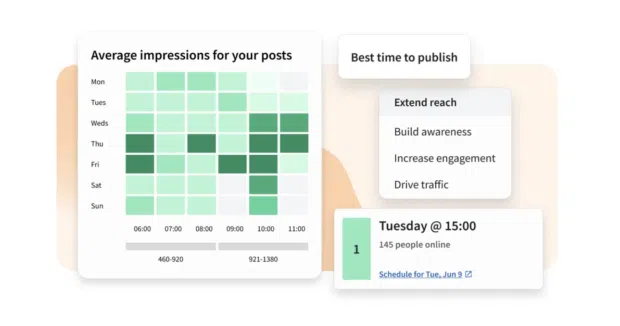
Then, use the easy scheduling function to populate a whole week, month, or year’s worth of content to go out at the exact right moment.
Meet the Suite
Understand what matters, decide what to do next, and take action across every social workflow — all from one connected suite.

How do you deactivate or delete your Facebook Business Page?
If you want to temporarily deactivate or permanently delete your business page, follow these steps:
- Click your profile image and choose your business page from the drop-down list.
- In the left menu, click the name of your Page, then click Settings.
- Scroll down to Your information in the left menu, then click Access and control.
- Select if you want to temporarily deactivate or permanently delete your page.
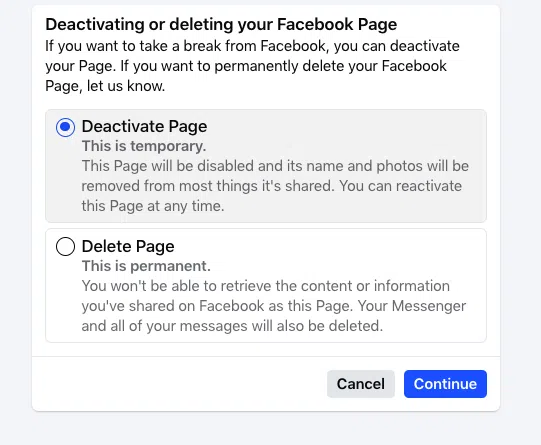
If you deactivate your page, it will be disabled, but you can reactivate it later on.
If you delete your page, it will disappear forever. This includes everything you ever posted, shared, or commented, as well as all messages sent as the Page. You’ll be offered the chance to download or transfer your info before everything is destroyed.
For both options, you’ll be prompted to share your password one more time.
FAQs: Facebook Business Page
How do I create a Facebook Business Page account?
Should I create a separate Facebook account for a business Page?
Does my Facebook Business Page have to be linked to my personal profile?
Is there a difference between a Facebook Page and a business Page?
How much does a Facebook Business Page cost?
Can I have multiple Facebook Business Pages?
Is a Facebook Business Page or Instagram Business Profile better for my business?
How do I run Facebook ads from my business page?
How do I troubleshoot problems with my Facebook Business Page?
What are some legal requirements for my Facebook Business Page?
Save time managing your social media marketing strategy with Hootsuite. Publish and schedule posts, find relevant conversions, measure results, and more â all from one dashboard. Try it free today.
The post How to create a Facebook Business Page in 2026 appeared first on Social Media Marketing & Management Dashboard.